
1 min read
Tip of the Week: Cortana Can Help You Cheer On Your Team
It’s football season once again, and this year, we want to show you how to set up Cortana to follow your favorite teams–football or otherwise....
1 min read

Cortana, Windows 10’s built-in personal assistant, has proven to be useful for those users who have taken advantage of her services. Sometimes, however, the Cortana interface will answer when another person in the room beckons her. For Cortana to work for one person, and to obey only one voice, the software needs to get to know that voice.

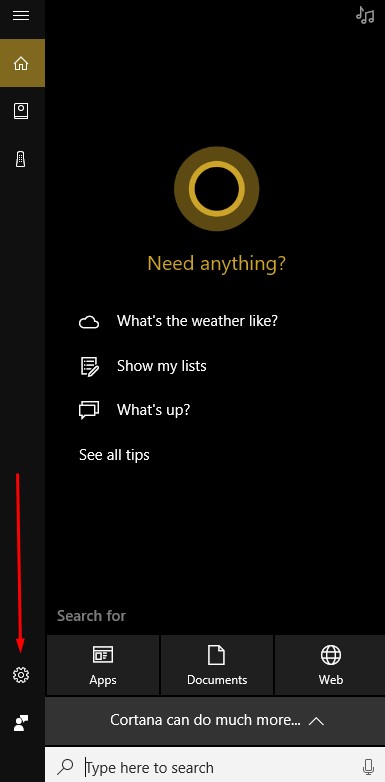
To begin to set this up you have to open Cortana’s Settings. To do this, click on the Cortana Icon on the taskbar.

Then select the gear-shaped icon in the Cortana window to access Cortana’s settings.
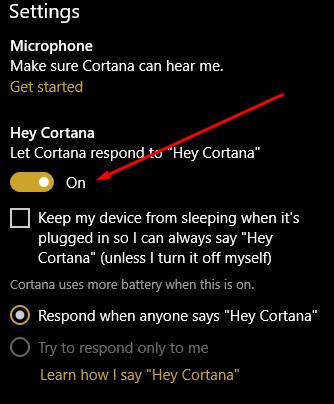
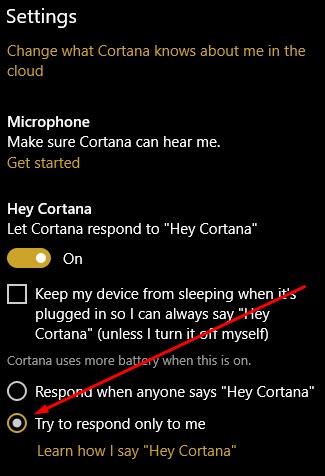
Make sure that the Let Cortana respond to “Hey Cortana” setting is toggled on.
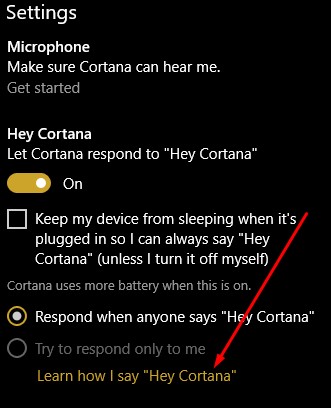
Then select Learn how I say “Hey Cortana”.
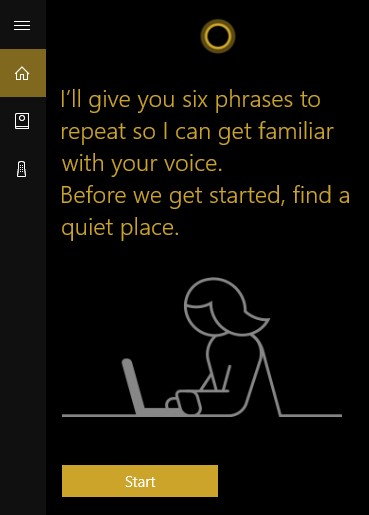
You will then be asked to answer six phrases to help Cortana determine the way you say “Hey Cortana”.
Once you’ve completed that step, return to Cortana’s settings and make sure that the try to respond only to me option is selected.
Now you have Cortana’s full attention. You can have her help you with any number of issues, while helping you navigate Windows 10.
Do you use Cortana? Siri? Google Assistant? Alexa? Bixby? If so, which are your favorites? Leave your thoughts with us in the comments below.

1 min read
It’s football season once again, and this year, we want to show you how to set up Cortana to follow your favorite teams–football or otherwise....
1 min read
Saving a little on your technology can go a long ways, but cutting too many corners can lead to additional problems and expensive downtime. Here...
2 min read
Data backup and disaster recovery is one of the most important parts of running a business, even if they are only used frequently, if at all, to...